2013年10月31日星期四

How do I reset my password on an old Apple Mac

Windows Password forgot is a very common problem, but also happens on Mac computer too.

"got out my old Apple Macbook & I can't remember the password.
I've tried everything- command+r & command+s didn't work for me.
I'm willing to delete everything off the computer I I have too."

Here will share some tips on Mac password recovery, you can choose one way to try to.


1.Resetting Lost Mac Passwords with Apple ID

When you need to recover your mac password, this is the best approach for Mac users running new versions of OS X  because it’s extremely fast and simple. The only requirements are that you must have tied an Apple ID to a user account, and you must have internet access so that the Mac can contact Apple to initiate the reset procedure.

From the Mac login or boot screen, enter any wrong password three times to summon the “Password Hint” box and a message saying “If you forgot your password you can reset it using your Apple ID”… click on that (>) arrow icon to start the Apple ID based reset
Enter the Apple ID credentials, this is the same information used to log into the App Store, iTunes, and iCloud, then click “Reset Password”
Confirm the new password and let the Mac boot as usual

It is very easy, right, but if it doesn't work, you can try the below one.

2. Reset Mac Password  with installer CD/DVD or Recovery Mode Partition

Resetting a forgotten Mac password is pretty easy if you have an installer disk, the recovery steps depend on the version of OS X the Mac is running.

For OS X Mavericks (10.9), Mountain Lion (10.8), and Lion (10.7) with Recovery Mode:
Boot into the Mac OS X boot loader menu by holding down the OPTION key at system start
Choose the Recovery drive to boot into recovery mode and wait until the “Utilities” screen appears
Pull down the “Utilities” menu and choose “Terminal”
At the command line, type “resetpassword” without the quotes
Confirm the new account password, then reboot the Mac as usual

For Mac OS X Snow Leopard (10.6), Leopard (10.5), and before with install DVD/CD:
Insert the bootable DVD into the Mac and restart or start the computer
Boot the disk by holding down the “C” key at system start
Select your language preferences and then under the “Utilities” menu select “Password Reset” (it may say “Reset Password” instead, depends on the version of Mac OS X)
Select the hard disk that the forgotten password is on, then select the username of the forgotten password, you’ll then be asked to select a new password
Reboot as usual from the hard drive, using your newly reset password as the login!

Hope this two tips can help your recover your forgotten password on Mac computer.

Help on Forgotten WiFi Password

It is very convenient to have WiFi on our house or classroom, for we can surfing on the net every time and every where through our mobile or iPad. But sometimes we may meet the questions like that " I changed my wifi thing to WEP or something like that a long time ago so I could connect my DSI to the wifi. It required me to change the wifi password and it's been a while since I've had to connect anything to it. Is there any way I can recover the password so I can connect other things to it?"

But don't worry so much, here will show you how to find your lost WiFi Password at easy.


Option 1 - Restore the router to factory defaults


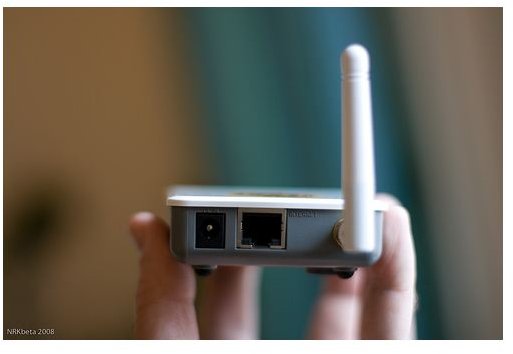
If you lost the administration password or can’t find the manual that shows the default password, you may need to do a manual reset of the router. Please note that this will erase any configuration that was made on the device including user names. Once you have restored the router to its factory default settings it will be ready to be configured just as if it were brand new. Here is how the process works. Manually Reset the Router - Look to the back or bottom of your wireless router and identify the reset button. Hold down the I forgot my Wi-Fi password – How to retrieve wifi passwordbutton (use a paper clip or pen if it’s a pinhole) for a couple of seconds until you see the lights change their flashing pattern, which will suggest that it is in configuration mode. Please note: on some routers will reset after holding down the button for 10 sec, while others will require you holding the button for more than 30sec.


  • Access the Control Panel - From a computer that is connected to the router, enter the router’s control panel by entering 192.168.0.1 (some routers use 192.168.1.1) in the address bar of a browser and press enter. On Netgear products the default login address is Routerlogin.net. You should be prompted to enter a password. If you had left it to the default both the password and username should be “admin”.
  • Set a new password – Setting a new password will vary depending on the router you are using but you should be able to find and set a new admin password from the tools or admin menu. Save the settings and exit the interface.

  • Option 2, Use Program to crack the password

    Step 1: Download WirelessKeyView (or the 64-bit version of WirelessKeyView) to a computer that can connect to the wireless network.
    (Credit: Screenshot by Nicole Cozma)
    Step 2: Extract the zip to a location of your choosing (the desktop is fine) and then run the downloaded program.
    (Credit: Screenshot by Nicole Cozma)
    Step 3: Take note of the security information for the networks you're interested in. Whether you want the hex value or the ASCII value is determined by what key type was used for the network encryption.
    This tool is very handy when helping friends or relatives who can never remember their network keys. It's also great for adding new devices to a WiFi connection when the network admin is off at school, work, or got lost time traveling. If all else fails, the option always exists to fully reset the router, but this method is far less intrusive.


    2013年10月30日星期三

    Tutorial on lost Windows 7 Password Recovery-An Easy and Efficient Way

    Very troublesome if you find you can't get into your computer because of the password lost problem. And to find out or remember is not the simple way. No need to re installing system, just use an USB flash drive now to reset your password to blank.


    Tip one: Resetting your Windows 7 password with password reset disk.

    If you have created a password reset disk for that account fortunately, take out the disk and insert to the computer, restart it and follow below steps to reset the password.

    Step 1: When in the login screen, enter a wrong password and then it will show you “reset password…”, click that link to go to reset password screen.

    Step 2: Enter a new password for that account twice and confirm, then you can login that account with the new password.

    If you forget your password for that account again, you can use the same password reset disk and no need to make a new one. But note you that the disk only use on a certain account which you created for.

    Tip 2: Recovering your Windows 7 password with Windows Password Recovery

    If you didn’t have any Windows 7 password reset disk, still no worry as you can create a bootable disk which allows you to boot into your system to reset a password with the help of FinalSeeker Windows Password Recovery.

    Windows Password Recovery is a powerful and professional program to help you get back your lost password within five minutes, it is 100% recovery granted. Download and install the program on any available computer you can log in and follow below steps to recover the lost password.

    Step 1: After installing the software on any computer, prepare a blank CD/DVD or USB flash drive and insert it to the computer.

    Step 2: Run the software and begin to make a bootable password reset disk in seconds.

    Step 3: Now turn to your locked computer, insert the newly created disk to the computer and restart, if it is a USB bootable disk, you need to go to your BIOS Setting to move the USB drive to the first so that your computer can boot from the USB disk.

    Step 4: Restart your computer and you’ll find the Vcool Windows Password Rescuer works, follow the guide on the program to reset your password in 3 clicks.

    Password Resetting is very easy though you can't log into your computer, just a problem and USB, and there simple way. Please remember to backup your password hit so that next way you can easily handle it if you meet it again.