But don't worry so much, here will show you how to find your lost WiFi Password at easy.
Option 1 - Restore the router to factory defaults
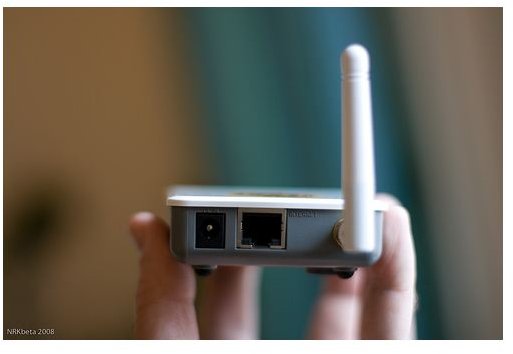 button (use a paper clip or pen if it’s a pinhole) for a couple of seconds until you see the lights change their flashing pattern, which will suggest that it is in configuration mode. Please note: on some routers will reset after holding down the button for 10 sec, while others will require you holding the button for more than 30sec.
Option 2, Use Program to crack the password
Step 1: Download WirelessKeyView (or the 64-bit version of WirelessKeyView) to a computer that can connect to the wireless network.
Step 1: Download WirelessKeyView (or the 64-bit version of WirelessKeyView) to a computer that can connect to the wireless network.
 (Credit: Screenshot by Nicole Cozma)
Step 2: Extract the zip to a location of your choosing (the desktop is fine) and then run the downloaded program.
 (Credit: Screenshot by Nicole Cozma)
Step 3: Take note of the security information for the networks you're interested in. Whether you want the hex value or the ASCII value is determined by what key type was used for the network encryption.
This tool is very handy when helping friends or relatives who can never remember their network keys. It's also great for adding new devices to a WiFi connection when the network admin is off at school, work, or got lost time traveling. If all else fails, the option always exists to fully reset the router, but this method is far less intrusive.

没有评论:
发表评论